Running the iPhone Duo Simulator on macOS Sequoia
· Midworld Kim
Table of contents
I really did not like Apple’s Liquid Glass. So my Mac is still on Sequoia, and my iPhone is still on iOS 18. I dislike things that are hard to see and waste processing power. Liquid Glass manages both.
With the iPhone Duo coming out, I needed to support a new form factor. Except the simulator would not start on my Mac running Sequoia. My preordered iPhone Duo is not supposed to arrive until next year, either. So I got some help from AI to get the iPhone Duo simulator running on my Mac, one way or another. The result is that everything I need works, which makes me wonder if AI will gradually weaken Apple’s attempts to force everyone to upgrade (of course, people who hated this kind of coercion had already put together recipes, piece by piece, for running things without upgrading, and I respect them), and at the same time I worry that Apple might just turn the Mac into an iPad.
I downloaded Xcode 27.1 on Sequoia and modified the Device Hub and DeviceKit included in it. Xcode 27.1 officially requires macOS Tahoe 26.6 or later, so running it on Sequoia is outside the supported setup. Apple system requirements
Test environment #
| Item | Version used |
|---|---|
| Computer | Apple M1 Max, running natively on Apple Silicon |
| OS | Sequoia 15.7.7 / 24G720 |
| Simulator source | Xcode 27.1 / 27A9275 |
| Compatibility library compiler | Xcode 26.3 / 17C529, Apple Swift 6.2.4 in my installation |
| Runtime | iOS 27.1 / 24A94232 / arm64 |
| Simulator device type | com.apple.CoreSimulator.SimDeviceType.iPhone-Duo |
Displays and behavior #
Closed #
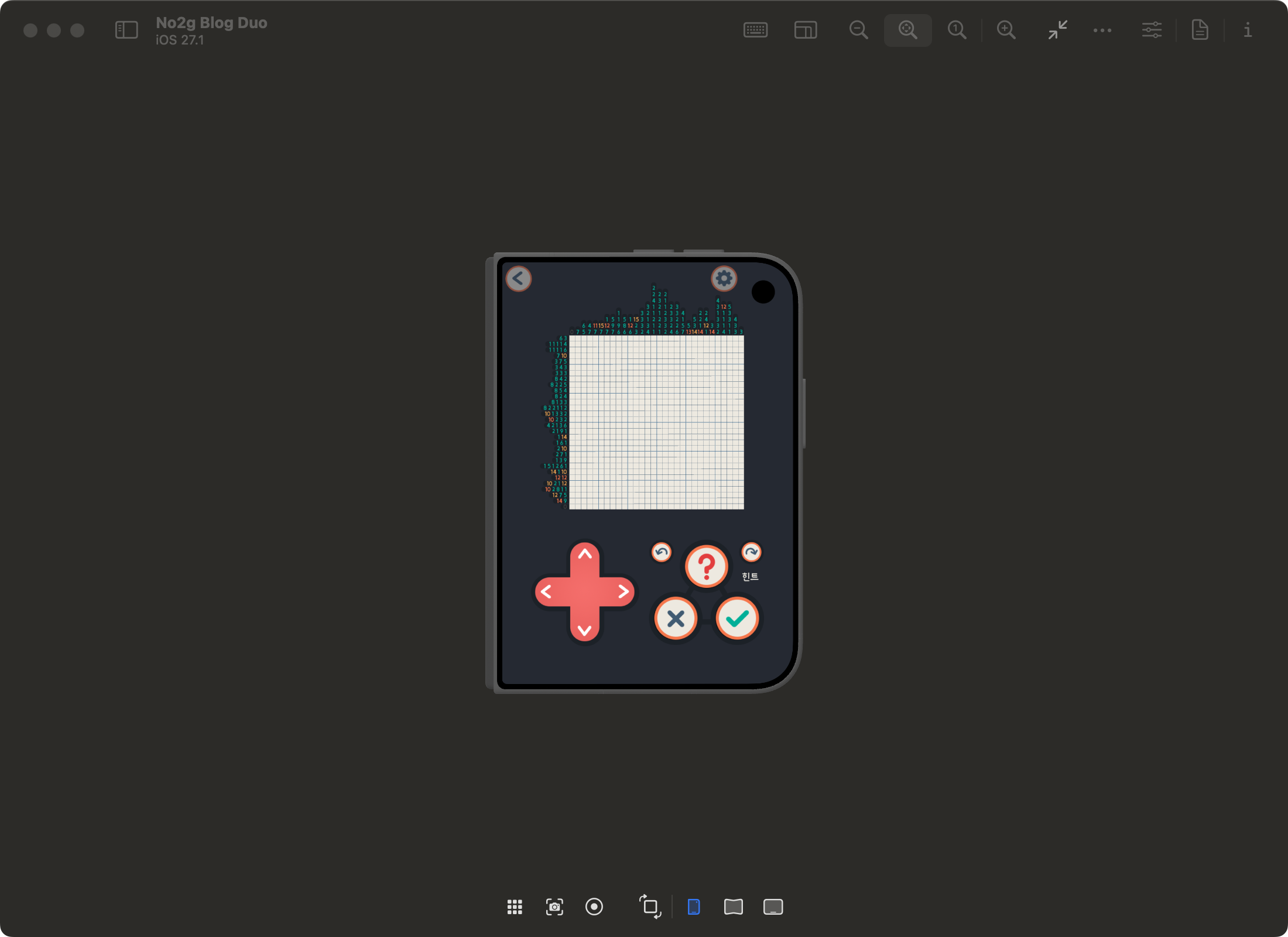
When closed, the outer display shows up and click input works. Safe areas work, as does the new API that reports the camera region.
Open #
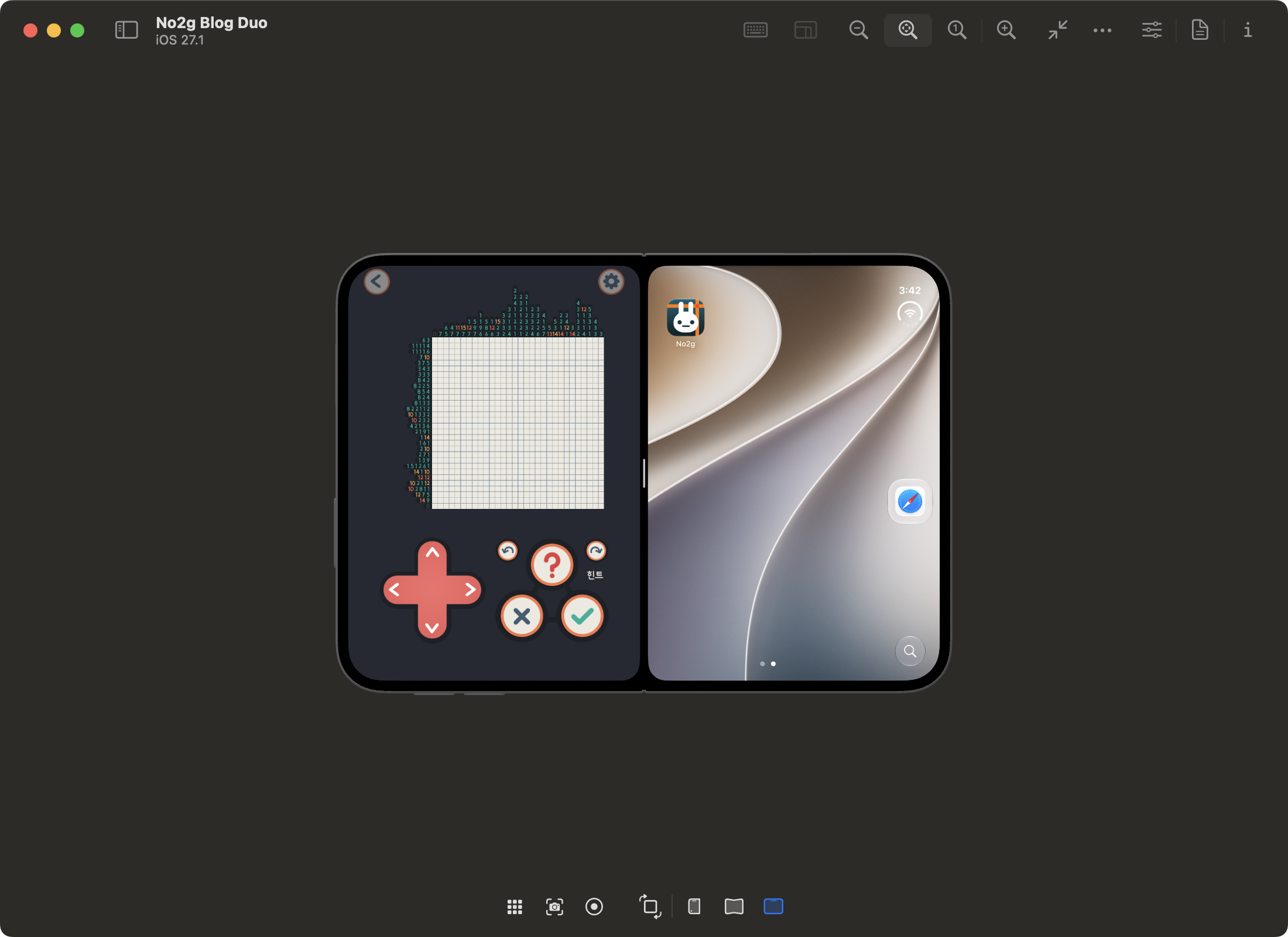
When fully open, the entire inner display is visible. The test app appears on the inner display, and multitasking works too.
Partially open #
When partially open, a transition animation (blur) appears briefly, then goes away and the content is shown. It looks like it is supposed to stay blurred, but it works, so I ignored it.
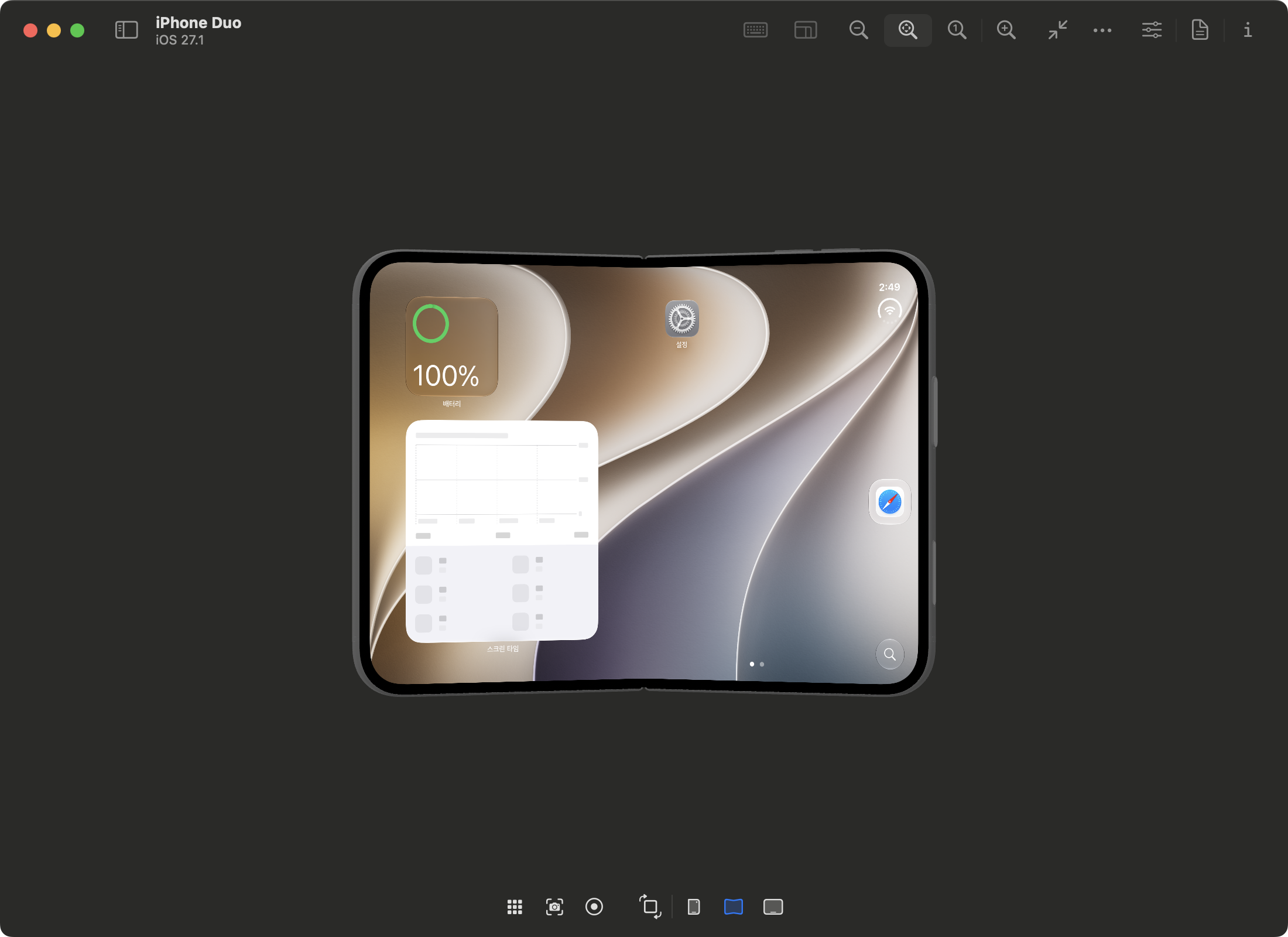
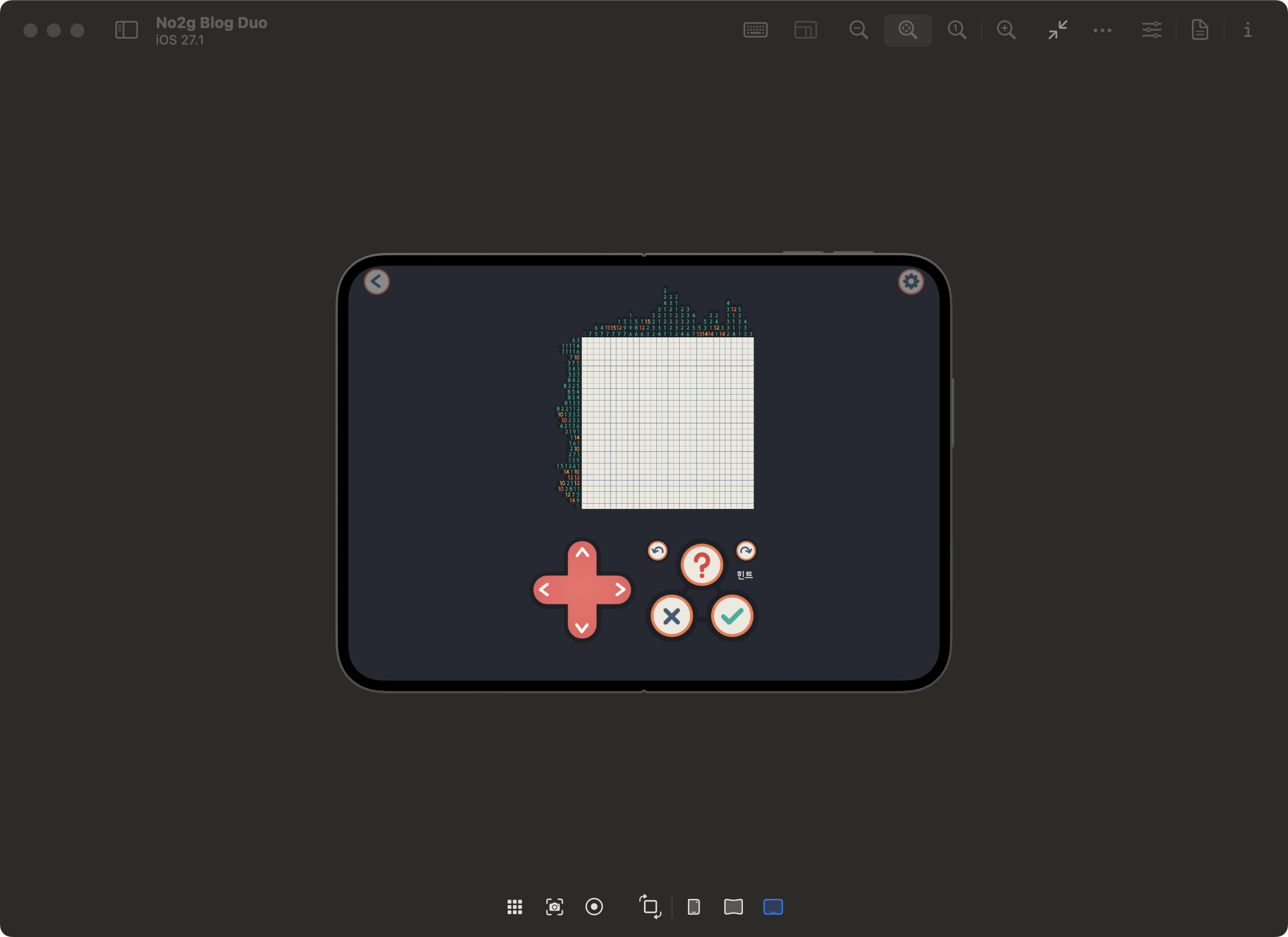
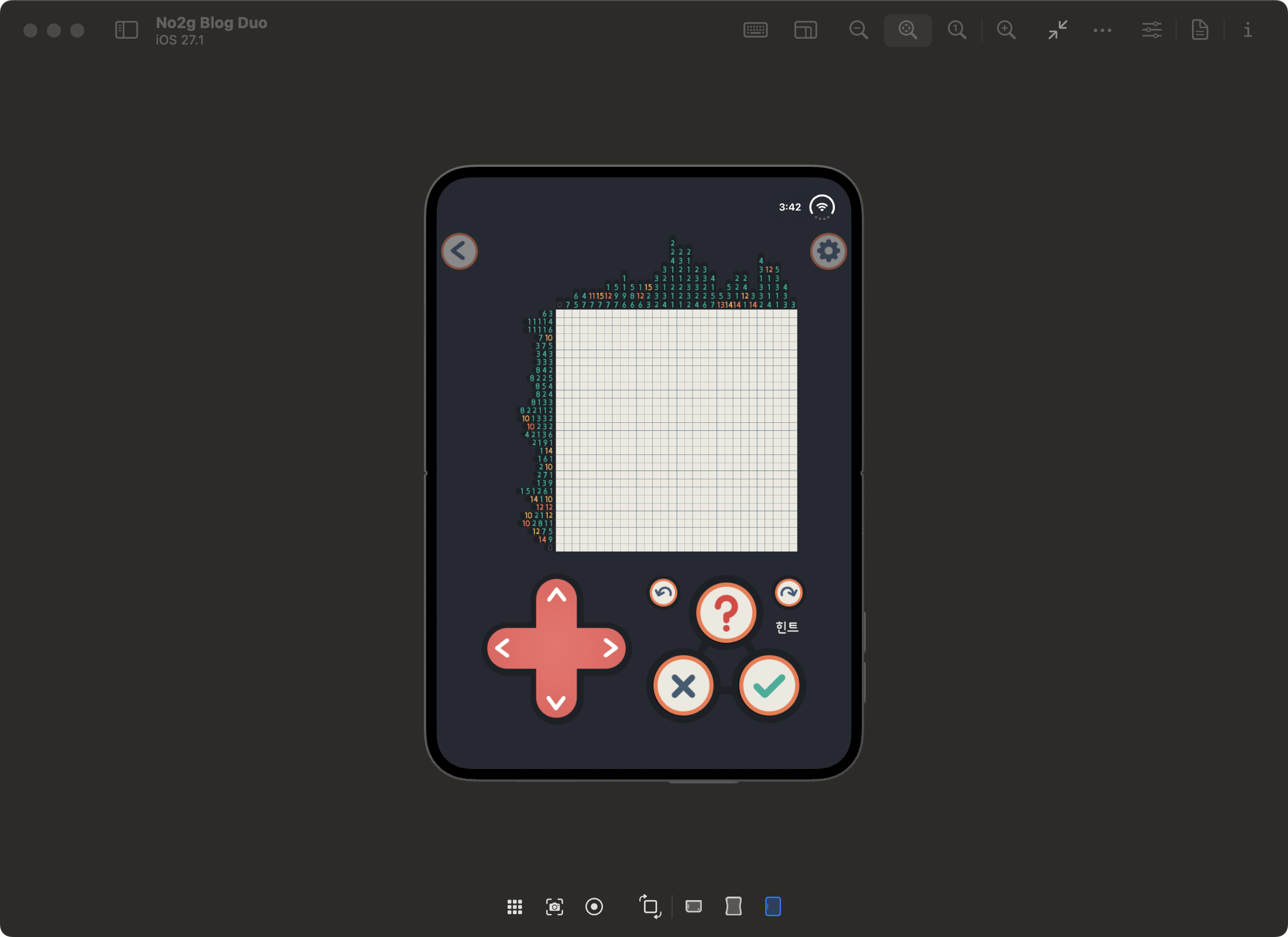
- Rotates 90 degrees when open
- Rotates and returns to its original orientation when closed
- The test app works with coordinate-based clicks
- The modifications remain after closing Device Hub and relaunching it without a debugger
What I changed #
Lowering the minimum macOS version in the app was not enough. I worked through the missing APIs, the display connection’s lifetime, the iPhone Duo plugin, and screen compositing, in that order.
APIs missing from Sequoia #
Some APIs used by DeviceKit, including Observation.Observations, are missing from the host. I built six compatibility libraries covering the Observation backport and Foundation, Swift runtime, Reality, SwiftUI, and Quartz adapters, then redirected the required references.
The Observation backport is based on implementations from Archdoog/ObservationsKit and the Swift project.
The iPhone Duo plugin also needed its type selection fixed: it initialized the new SwiftUI task modifier, then selected the old type’s metadata and witness. Missing symbol aliases can cause the plugin to fail when loading even after compilation and signature checks pass.
The simulator started without crashing, but… #
The screen appeared after the simulator started, then immediately disappeared. The display connection task’s Task.sleep(nanoseconds: UInt64.max) returned almost immediately. Changing the argument to Int64.max kept the connection alive.
The inner display hidden behind the device shell #
After getting the screen to stay on, I could still only see the outer display. The inner display did not look right (it felt like part of it was hidden). I checked that the outer and inner display providers and screen views existed, then moved the screen host’s parent compositing group forward. The full image appeared.
The fix only applies to the iPhone Duo plugin’s screen host when this patched app runs on macOS 15, so it does not affect other devices. Leaving the mesh, framebuffer size, screen transforms, and input routing alone worked fine.
Build precautions and effects on the existing setup #
I put the changes into a Python build script and Swift, Objective-C, and C sources. The script checks the CPU, Xcode and Swift versions, and SHA-256 hashes of the original binaries. It patches copies only when the original instruction bytes match what it expects.
A rebuild compiles all six compatibility libraries from source. The build script does not modify the installed Xcode or system frameworks. However, xcodebuild -runFirstLaunch, used during setup, updates shared developer components under /Library. Those changes can affect an existing Xcode installation too, so I recommend backing them up. I could still use the older Xcode without any particular problems.
The modified app refers to some frameworks in the original Xcode through absolute paths. For a new environment, I would patch it again instead of copying an already patched app. I did not have to touch SIP or Gatekeeper. I added a library-validation exception to the modified app so it could load the compatibility libraries.
Files and patch commands #
These are the files and sources I used. Device Hub and DeviceKit are included in Xcode 27.1, so they do not need separate downloads.
| File | Download and version |
|---|---|
| Xcode 27.1 | From Apple Developer Downloads, download the release .xip. Build 27A9275 |
| Xcode 26.3 | Download from Apple Developer Downloads. Build 17C529. Used to compile the compatibility libraries; no need to download it again if already installed |
| iOS 27.1 simulator runtime | Download with the commands below. I tested 24A94232, arm64 |
| Patch source | GitHub repository. Contains the README, build script, and compatibility sources |
An Apple account login may be required. You also need Python 3.9 or later and several tens of GB of free space. The runtime download alone is about 8 GB.
Get the source and set the paths #
Extract the Xcode .xip files. Put 26.3 at /Applications/Xcode.app and 27.1 at /Applications/Xcode-27.1.app. Give them different names to avoid overwriting the existing Xcode. The commands below use my paths, so change them if yours are elsewhere. The shell is the default macOS zsh.
Get the patch source from GitHub.
export DUO_XCODE='/Applications/Xcode-27.1.app'
export DUO_COMPILER_XCODE='/Applications/Xcode.app'
export DUO_RECIPE="$HOME/Developer/iphone-duo-simulator-sequoia"
export DUO_WORK="$HOME/Developer/Duo-Sequoia"
export DUO_OUTPUT="$DUO_WORK/build-01"
mkdir -p "$DUO_WORK"

git clone https://github.com/midworld/iphone-duo-simulator-sequoia.git "$DUO_RECIPE"

python3 --version
DEVELOPER_DIR="$DUO_COMPILER_XCODE/Contents/Developer" \
/usr/bin/xcrun swiftc --versionI checked Swift 6.2.3 and 6.2.4. Similar versions will probably work too (the script needs to be modified to allow other versions). The compatibility libraries are compiled from source, so their output does not need to be byte-for-byte identical to a previous build. The ABI and required symbols do need to match. Swift library compatibility
Install shared components and the runtime #
If this is your first time installing the shared components, start with the backup steps in the README. Then review the license and install the components. If setup is already complete, check the status with -checkFirstLaunchStatus.
sudo env DEVELOPER_DIR="$DUO_XCODE/Contents/Developer" \
  /usr/bin/xcodebuild -license
sudo env DEVELOPER_DIR="$DUO_XCODE/Contents/Developer" \
  /usr/bin/xcodebuild -runFirstLaunch
DEVELOPER_DIR="$DUO_XCODE/Contents/Developer" \
/usr/bin/xcodebuild -checkFirstLaunchStatusDownload the Apple Silicon runtime for iOS 27.1 and check the device types too.
DEVELOPER_DIR="$DUO_XCODE/Contents/Developer" \
  /usr/bin/xcodebuild -downloadPlatform iOS -buildVersion 27.1 \
  -architectureVariant arm64
DEVELOPER_DIR="$DUO_XCODE/Contents/Developer" \
  /usr/bin/xcrun simctl list runtimes
DEVELOPER_DIR="$DUO_XCODE/Contents/Developer" \
/usr/bin/xcrun simctl list devicetypesCheck that the lists include iOS 27.1 / 24A94232 and iPhone Duo.
Build the patched app #
This is the command that does the patching. It checks the versions and original hashes, makes copies, patches them, and signs the result.
python3 "$DUO_RECIPE/tools/build_devicehub.py" \
  --xcode "$DUO_XCODE" \
  --compiler-xcode "$DUO_COMPILER_XCODE" \
--output "$DUO_OUTPUT"The output directory must be new. If the build fails or you want to rebuild, set a new path, such as export DUO_OUTPUT="$DUO_WORK/build-02", then run the build command again. The resulting app is $DUO_OUTPUT/DeviceHub-Duo.app.
Create and run an iPhone Duo device #
Create and boot an iPhone Duo simulator device with these commands.
DUO_UDID=$(DEVELOPER_DIR="$DUO_XCODE/Contents/Developer" \
  /usr/bin/xcrun simctl create 'iPhone Duo' \
  com.apple.CoreSimulator.SimDeviceType.iPhone-Duo \
  com.apple.CoreSimulator.SimRuntime.iOS-27-1)
DEVELOPER_DIR="$DUO_XCODE/Contents/Developer" \
  /usr/bin/xcrun simctl boot "$DUO_UDID"
DEVELOPER_DIR="$DUO_XCODE/Contents/Developer" \
  /usr/bin/xcrun simctl bootstatus "$DUO_UDID" -b
open "$DUO_OUTPUT/DeviceHub-Duo.app"Choose iPhone Duo in Device Hub and press Start. Check that Closed, Partially Open, Open, and the rotation buttons work.
Reproduction script #
I put the build tool and sources for reproducing this patch in a GitHub repository. Xcode and the simulator runtime need to be downloaded separately from Apple.
The build script covers Device Hub. The full Xcode IDE patches are recorded for reference in a separate README section. When I tried the IDE, the editor content that should sit behind the Liquid Glass UI buttons at the edges of the screen just overlapped the buttons. Clicking the buttons and using the features seemed fine.
Run the commands above yourself, or point whatever AI tool you use at the repository and have it work through them. I hope this helps anyone who wants to test the iPhone Duo on an older macOS, like me.